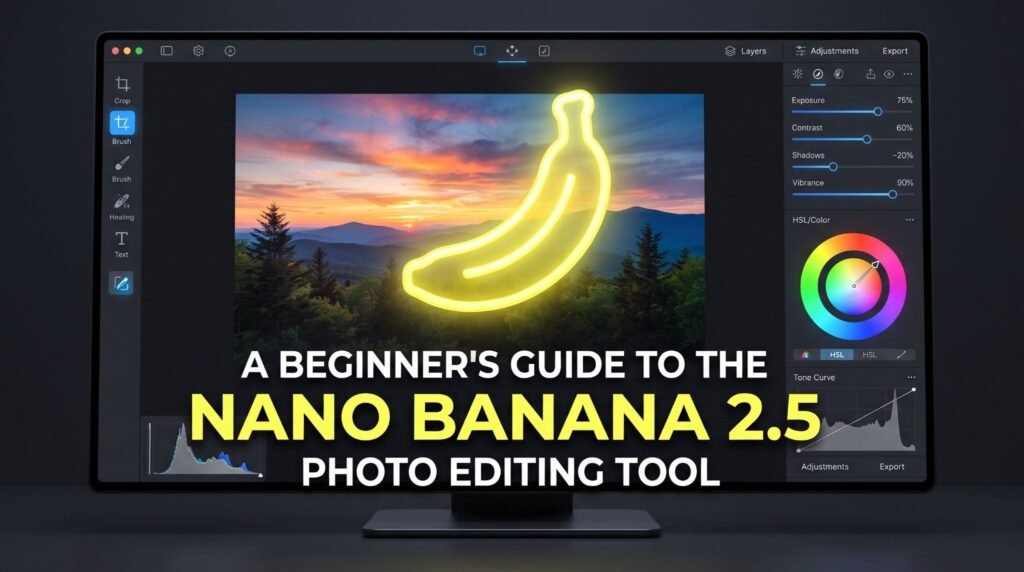
AI photo editing no longer demands years of design practice. Instead, you can describe a change in plain words and watch it appear. That shift explains why so many beginners now look for the Nano Banana 2.5 photo editing tool.
However, the name confuses plenty of newcomers, and the options can feel overwhelming at first. This guide keeps things simple and practical.
First, you will learn what Nano Banana 2.5 really means. Next, you will explore the main features and a basic editing workflow. Finally, you will pick up prompt tips and a few honest limitations.
What Is Nano Banana 2.5?
Nano Banana is the popular name for Google’s family of AI image models. Many people search for “Nano Banana 2.5” when they want prompt-based creation or reference-led editing. In other words, the name points to a type of AI editing rather than one specific app.
CapCut brings this approach into its own image workflows. Specifically, CapCut’s Nano Banana 2.5 photo editing tool combines text-to-image creation and image-to-image editing on one page. CapCut’s FAQ notes that the platform offers Nano Banana Pro today, with version 2.5 coming soon. Still, the core workflow is already live, so beginners can start practicing right away.
In practice, the tool works in two directions. You can start from a written idea, or you can begin with an existing photo. Because both paths rely on plain language, the learning curve feels gentler than with traditional photo software.
Key Features of Nano Banana 2.5 for AI Image Editing
Each workflow offers its own set of tools, and both connect to CapCut’s wider editor. Here is what you can expect from each one.
Text to Image With Readable Text
This workflow turns a written idea into a finished visual. In particular, it can place readable text inside the image. You can specify headlines, labels, and short copy, along with their placement and contrast. After that, you can fine-tune the typography in CapCut’s editor before export.
The tool also handles different languages and visual styles. For instance, you can define the font mood, texture, and colors for each market you target.
Image to Image Editing With References
Here, you upload a photo or sketch as your starting point. Then you name the objects, colors, backgrounds, or lighting you want to change. You can also state which details must stay untouched. As a result, the tool can protect key elements such as brand marks, product shape, or facial identity.
Style transfer takes things further. It can turn a photo into a cartoon, sketch, painting, or cinematic scene. In addition, CapCut’s image combiner can merge elements from several references into one result.
Finishing Tools for Every Platform
Once your image looks right, you can adapt it for each destination. The canvas settings cover posts, stories, banners, and print. Additionally, you can extend backgrounds, repair small flaws with inpainting, or create transparent cutouts. An AI upscaler adds extra clarity when a final asset needs more size.
How to Edit Photos With Nano Banana 2.5: Step by Step
You do not need design experience to get a solid first result. Instead, follow these five simple steps:
- Choose your workflow. Pick text to image when you start with a written idea. Go with image to image when a reference photo should guide the result.
- Add your prompt or photo. Write a clear description, or upload the image you want to transform.
- Set the format. Select an aspect ratio for your platform, such as a square post or a vertical story. Then choose the resolution that suits your final use.
- Review and refine. Check every detail, especially any text inside the image. If something looks off, adjust your prompt and try again.
- Finish and export. Use inpainting or the upscaler for final touches. After that, export the image for your project.
Expect to repeat the review step a few times at first. Each round teaches you more about how the model reads your prompts.
Practical Ways to Use This AI Photo Editor
Nano Banana-style editing fits a wide range of everyday projects. CapCut highlights several common uses:
- Social media content: Create square posts, vertical stories, and thumbnails, then adjust the text treatment for each platform.
- Product showcases: Generate product scenes and packaging ideas while keeping the product itself recognizable.
- Storyboards and comics: Develop characters and settings, then compare camera angles, lighting, and pacing.
- Profile and education graphics: Refresh profile photos or build clear visuals for lessons and presentations.
- Posters and ads: Design text-led posters, ad concepts, logos, and infographics with readable wording.
Your work does not have to end with a still image. For example, you can keep editing in CapCut or turn the result into an image-to-video project. That way, a single visual can support a post, a story, and a short video.
Tips for Writing Better Nano Banana Prompts
Your prompt shapes the result more than any other setting. So a little extra care goes a long way. Keep these tips in mind:
- Be specific. Name the subject, setting, lighting, and mood instead of relying on vague words.
- Put exact text in quotes. Also mention the language, layout, font mood, and contrast you want.
- Say what should stay. List the elements the tool must keep, such as a logo or a face.
- Think about the destination. Tell the tool whether the image will appear in a story, a banner, or print.
- Change one thing at a time. Small, focused edits make it easier to compare variations.
- Proofread the output. AI can still misspell words, so check every character before export.
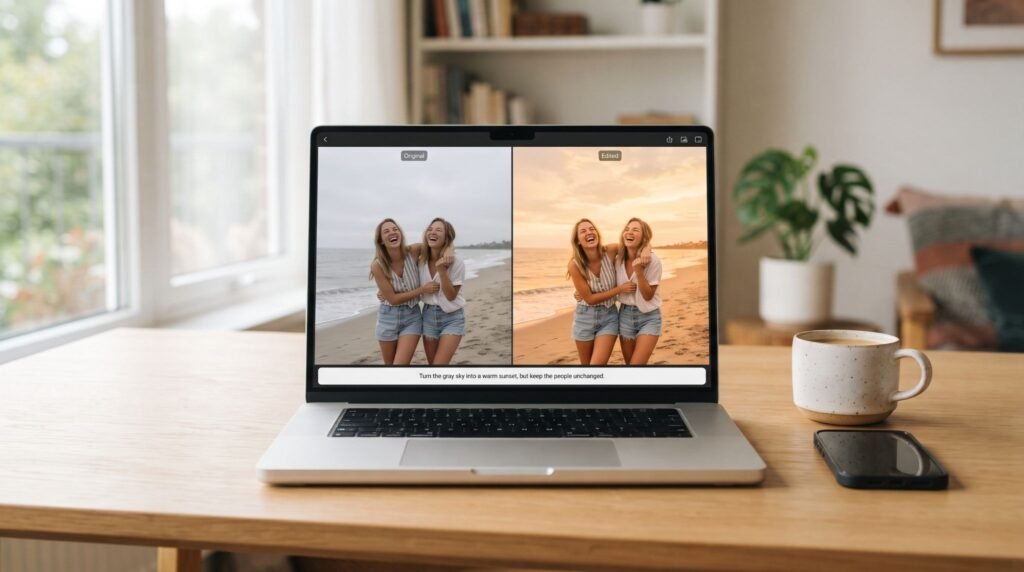
To practice, try this prompt: “Turn the gray sky into a warm sunset, but keep the people unchanged.”
Limitations and Best Practices to Keep in Mind
No AI editor is perfect, so plan for a few bumps. First, export options depend on your app, account, region, and workflow. Second, AI-generated text still needs a careful human check.
Third, model names change quickly, so check CapCut’s page for current version details. Finally, results can vary between attempts, even when you reuse the same prompt.
Responsible use matters just as much. Above all, avoid editing real people in misleading ways. Similarly, respect copyright when you upload reference images. Whenever an edit could confuse viewers, label it clearly as AI-made.
Final Thoughts
The Nano Banana 2.5 photo editing tool gives beginners a friendly way into AI image editing. You write a prompt or upload a photo, then refine the result in a few clear steps.
Along the way, the model names may change as CapCut rolls out new versions. Even so, the core skills stay the same: clear prompts, careful reviews, and responsible choices. Better yet, these skills carry over to other AI image tools you may try later.
Start with one small project, such as a social post or a product shot. Then build your confidence one edit at a time.